Python Driver
Python driver is developed for OpenIMU, OpenRTK and INS2000.
Working Environment and Dependency Library Installation
Windows10: python2.7 and python 3.7
Mac OS: python2.7 and python 3.7
Install the dependency library. It is better to create a virtual environments before to do it.
For python 3.x
pip install -r requirements.txt
For python 2.x
pip install -r requirements-2.x.txt
Data logging
configuration file
You can send commands to Ins2000 through the configuration file. You can open the configuration file and modify ‘setupcommands’ list add commands you want to send. Configuration file path.
./setting/INS2000/INS2000.json
Run from source code
python main.py
Run from execution file
pyinstaller build.spec
./ans-devices
You can specify some arguments while run the tool.
parameters:
Name |
Type |
Default |
Description |
|---|---|---|---|
-p, –port |
Number |
‘8000’ |
Value should be an available port |
–device-type |
String |
‘auto’ |
Value should be |
-b, –baudrate |
String |
None |
Value should be baudrate |
-c, –com-port |
String |
‘auto’ |
Value should be a COM port |
–console-log |
Boolean |
False |
Output log on console |
–debug |
Boolean |
False |
Log debug information |
–with-data-log |
Boolean |
False |
Contains internal data log (OpenIMU only) |
-r, –with-raw-log |
Boolean |
False |
Contains raw data log (OpenRTK only) |
-s, –set-user-para |
Boolean |
False |
Set uesr parameters (OpenRTK only) |
-n, –ntrip-client |
Boolean |
False |
Enable ntrip client (OpenRTK only) |
–cli |
Boolean |
False |
Work as command line mode |
Connect Aceinna device
Link device to your pc or mac. And the tool will auto detect the linked device.
Normally, python-openimu works as Web mode. It will auto start a websocket server after device is detected. And it can works with aceinna developers site to do monitor and set configuration of connected device.
You can specify the startup parameter --cli to switch to Command
Line Mode. Command Line Mode helps you to interact with device without
open the brower.
Commnad List:
Name |
Description |
help |
CLI help menu |
exit |
Exit Command Line Mode |
run |
Operationsdefined by users |
save |
Save thee configuration into EEPROM |
connect |
Show information of connected device |
upgrade |
Upgrade firmware |
record |
Record output data of device |
stop |
Stop recording outputs |
server_start |
Start server thread and must use |
get |
Read the current configuration and output data |
set |
Write parameters to device |
Data Decoding
Run the decoding program
python tools/ins2000_parser.py -f /your/ins2000/data/path
More command prompts
python tools/ins2000_parser.py
usage: ins2000_parser.py [-h] [-f F] [-c C]

Aceinna INS2000 parse input args command:

optional arguments:
  -h, --help  show this help message and exit
  -f F        The file to be decoded
  -c C        Decoding configuration file
Data Display
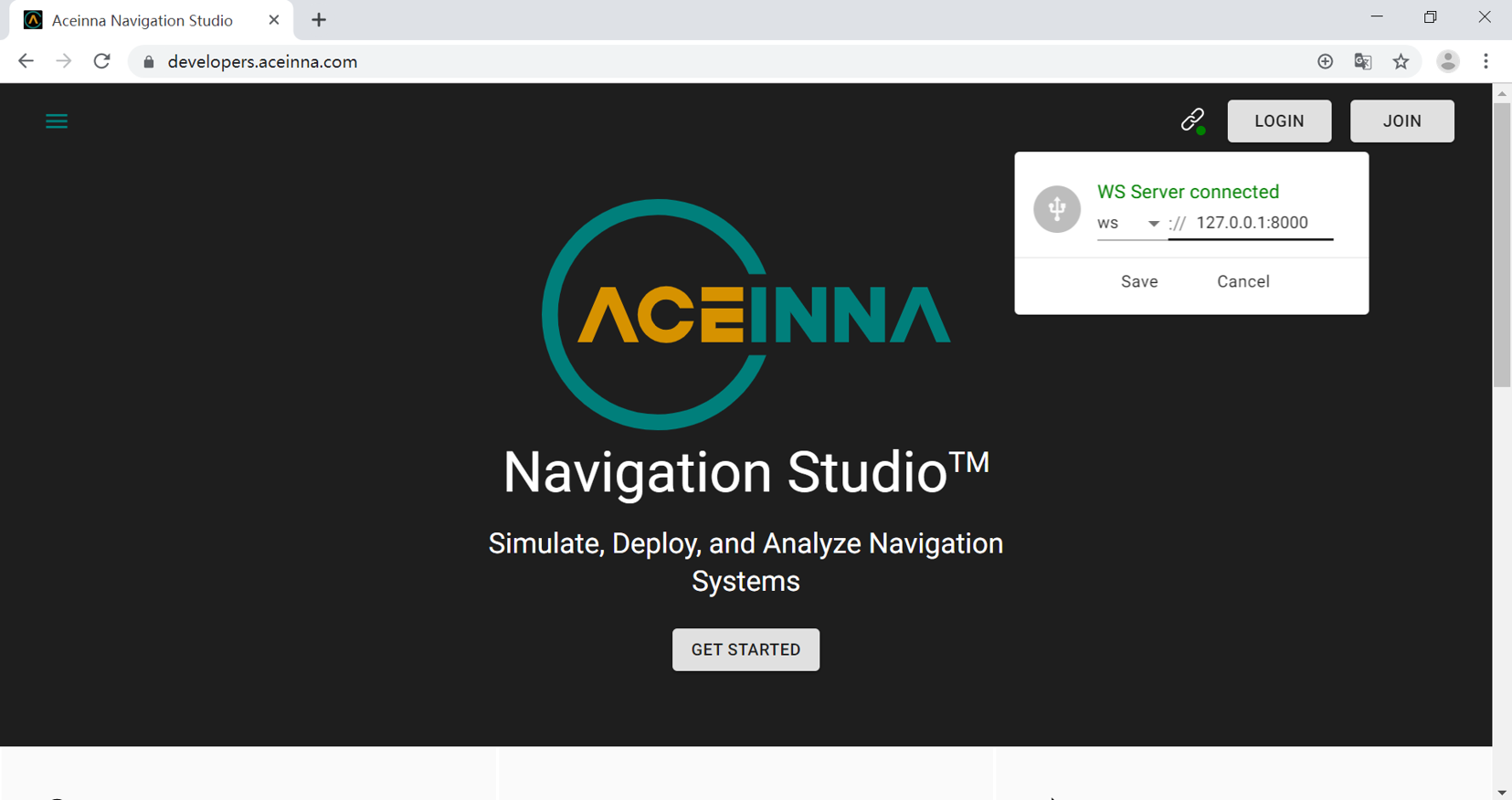
After running main.py, you can see the following page.

Open the website aceinna developers site and enter the following page.

Click the icon in the red box above, and select Devices in the left column, and then select OpenRTK, as shown in the figure below.

Enter the page below and click the play button.

As shown in the following two figures, you can see the dynamic trajectory of the INS2000 real-time data under the satellite map, as well as the acceleration and angular-rate in the X, Y, and Z directions.


If you cannot click the play button, or there is no response after clicking, you need to check the port number in the red circle in the first figure, and then click the button in the red box in the figure below.
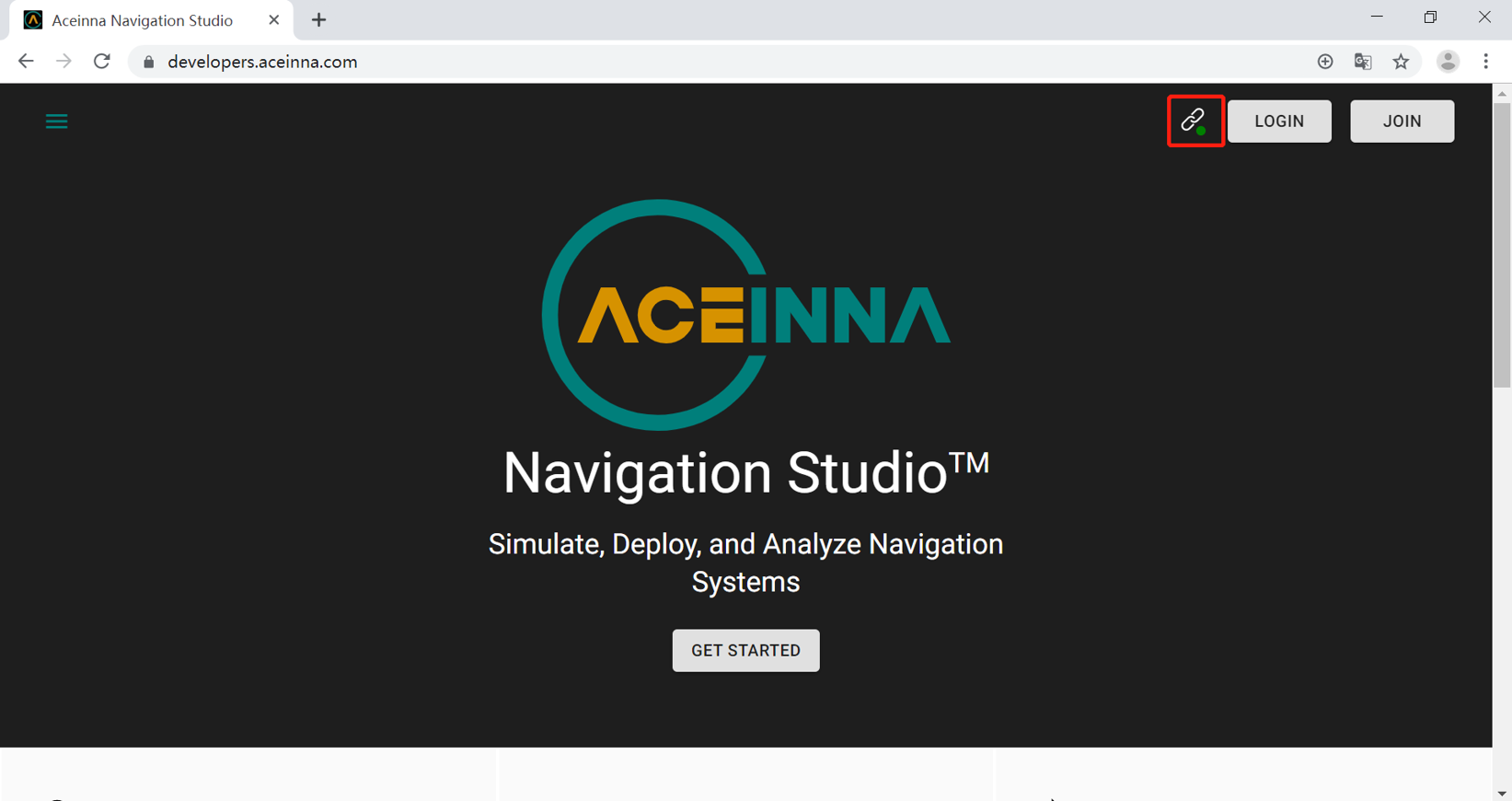
Edit the port number in the pop-up page to be consistent with the port number in the red circle in the first figure.